I. Introduction▲
Dans ce tutoriel, nous allons créer un combobox personnalisé hérité du combobox standard et permettant l'affichage de plusieurs colonnes dans sa liste déroulante.
Ce tutoriel est basé sur l'utilisation du Framework 2.0 et du langage VB.Net.
II. Présentation du Combobox▲
Avant d'hériter du combobox, il faut connaître le combobox.
Le Combobox est un control mettant à disposition une zone d'édition et une liste déroulante de valeurs acceptables par le combobox.
II-A. Les styles▲
Trois styles sont disponibles pour le combobox via la propriété .DropDownStyle (Aide VB.NET) :
- DropDown : la partie texte est modifiable. L'utilisateur doit cliquer sur le bouton fléché pour afficher la partie liste. Il s'agit du style par défaut ;
- DropDownList : l'utilisateur ne peut pas directement modifier la partie texte. L'utilisateur doit cliquer sur le bouton fléché pour afficher la partie liste ;
- Simple : la partie texte est modifiable. La partie liste est toujours visible.
II-B. La zone d'édition▲
La zone d'édition permet la saisie par l'utilisateur d'une valeur appartenant ou non à la liste du combobox.
La valeur affichée correspond à la propriété .text du combobox.
II-C. La liste déroulante▲
Cette liste présente l'ensemble des valeurs de la propriété .text proposée par le combobox.
Bien que seules ces valeurs soient affichées, chaque élément de la liste est en fait composé d'un ensemble d'items dont l'un constitue la source du texte affiché et un second la valeur réelle qui sera affectée au combobox lors de la sélection d'une ligne de la liste.
Il est donc nécessaire de définir une source de données pour la liste et, parmi les items composant les lignes de cette liste, un élément qui sera celui affiché et un élément qui constituera la valeur réelle du combobox.
II-D. Alimentation de la liste déroulante▲
L'alimentation de la liste déroulante est effectuée en fixant la propriété .DataSource du combobox :
Dim dt As New DataTable
dt.Columns.Add("C1")
dt.Columns.Add("C2")
dt.Rows.Add(1, "U")
dt.Rows.Add(3, "F")
dt.Rows.Add(2, "T")
dt.Rows.Add(4, "U")
Me.ComboBox1.DataSource = dt
L'objet utilisé pour cette alimentation doit implémenter l'interface IList.
II-E. Définition de l'item affiché▲
La définition de l'item de ligne de la liste constituant la source du texte affiché est effectuée par la propriété .DisplayMember du combobox :
Me.ComboBox1.DisplayMember = "C2"II-F. Définition de l'item source de la valeur réelle du combobox▲
La définition de l'item de ligne de la liste constituant la source de la valeur réelle est effectuée par la propriété .ValueMember du combobox :
Me.ComboBox1.ValueMember = "C1"II-G. Sélection d'un élément de la liste▲
Lors de la sélection d'une ligne de la liste ou de la saisie en zone d'édition d'un valeur appartenant à la liste, les propriétés suivantes sont positionnées :
- .SelectedValue : contient la valeur réelle qui sera utilisée en cas de bind et déterminée par la propriété .ValueMember ;
- .SelectedItem : contient l'item correspondant à la ligne sélectionnée ;
- .Text : contient la valeur affichée correspondant à la ligne sélectionnée et déterminée par la propriété .DisplayMember.
II-H. Mise en pratique▲
Nous connaissons maintenant le minimum qui nous permet d'utiliser le control combobox.
L'exemple suivant gère l'alimentation d'un combobox dans une form et la détection des modifications de valeurs de ce combobox :
Public Class Form7

    Public Sub New()
        ' Cet appel est requis par le Concepteur Windows Form.
        InitializeComponent()

        Dim dt As New DataTable
        dt.Columns.Add("C1")
        dt.Columns.Add("C2")
        dt.Columns.Add("C3")
        dt.Rows.Add("ID1", "PasAffiché1", "Affiché1")
        dt.Rows.Add("ID2", "PasAffiché2", "Affiché2")
        dt.Rows.Add("ID3", "PasAffiché3", "Affiché3")
        dt.Rows.Add("ID4", "PasAffiché4", "Affiché4")
        Me.ComboBox1.DataSource = dt

        Me.ComboBox1.ValueMember = "C1"
        Me.ComboBox1.DisplayMember = "C3"
        Me.ComboBox1.DropDownStyle = ComboBoxStyle.DropDown

        AddHandler ComboBox1.SelectedIndexChanged, AddressOf ComboBox1_SelectedIndexChanged

    End Sub

    Private Sub ComboBox1_SelectedIndexChanged(ByVal sender As Object, ByVal e As System.EventArgs)

        If Me.ComboBox1.SelectedItem Is Nothing Then Exit Sub

        Dim dv As DataRowView = CType(Me.ComboBox1.SelectedItem, DataRowView)
        MsgBox( _
        "Valeur affichée du combo = " + Me.ComboBox1.Text + _
        vbCrLf + _
        "Valeur réelle du combo = " + Me.ComboBox1.SelectedValue.ToString() + _
        vbCrLf + _
        "Objet sélectionné du combo = " + Me.ComboBox1.SelectedItem.ToString + _
        vbCrLf + _
        "_____ Contenu : " + _
        dv(0).ToString + " - " + dv(1).ToString + " - " + dv(2).ToString)
    End Sub

End Class
III. Personnalisation du combobox▲
III-A. Introduction▲
Comme tout control, le combobox peut être personnalisé (couleur, forme, comportement) directement dans la form qui le contient ou plus généralement via tout objet ayant accès aux propriétés et méthodes de ce combobox.
Public Class RedCombo
    Inherits ComboBox
    Public Shadows ReadOnly Property forecolor()
        Get
            Return MyBase.ForeColor
        End Get
    End Property
    Public Shadows ReadOnly Property backcolor()
        Get
            Return MyBase.BackColor
        End Get
    End Property
    Public Sub New()
        MyBase.ForeColor = Color.Red
        MyBase.BackColor = Color.Black
    End Sub
End Class
Les possibilités de l'héritage sont immenses et ne seront pas développées ici.
C'est de ces possibilités que nous allons nous servir pour personnaliser notre combobox.
III-B. Personnaliser la liste déroulante▲
Il est possible de personnaliser l'affichage du contenu de chaque ligne affichée dans la liste déroulante du combobox.
Pour ce faire, celui-ci met à disposition deux événements :
- DrawItem : levé lorsque le dessin de l'un des items de la liste est nécessaire ;
- MeasureItem : levé lorsque la hauteur d'un des items de la liste doit être déterminée.
Ces événements sont levés respectivement dans les procédures OnDrawItem et OnMeasureItem du control combobox.
Attention : l'utilisation du DrawItem et du MeasureItem nécessite de positionner la propriété .DrawMode à la valeur Windows.Forms.DrawMode.OwnerDrawVariable.
III-C. Personnalisation du dessin de l'item de la liste▲
La procédure OnDrawItem accepte un paramètre de type DrawItemEventArgs mettant à disposition l'ensemble des propriétés et méthodes nécessaires au dessin de l'item.
III-D. Définition de la hauteur d'un item de la liste▲
La procédure OnMeasureItem accepte un paramètre de type MeasureItemEventArgs dont la propriété .ItemHeight permet de définir la hauteur de l'item de la liste identifié par la propriété .index.
III-E. Exemple d'utilisation▲
Cet exemple illustre l'utilisation des méthodes OnDrawItem et OnMeasureItem pour personnaliser la liste déroulante d'un control hérité de combobox.
Public Class ComboBoxWithIncreasingItemHeight
    Inherits ComboBox

    ' On masque la propriété afin qu'elle ne soit pas modifiable
    Public Shadows ReadOnly Property DrawMode() As Windows.Forms.DrawMode
        Get
            Return MyBase.DrawMode
        End Get
    End Property
    Public Sub New()
        MyBase.DrawMode = Windows.Forms.DrawMode.OwnerDrawVariable
    End Sub

    Private intBaseHeigth As Integer = 15
    Protected Overrides Sub OnMeasureItem(ByVal e As System.Windows.Forms.MeasureItemEventArgs)
        ' Ici on fixe une hauteur constante pour les items de la liste
        e.ItemHeight = intBaseHeigth + e.Index * 5
    End Sub

    Protected Overrides Sub OnDrawItem(ByVal e As System.Windows.Forms.DrawItemEventArgs)

        ' index  < 0, il s'agit de la zone d'édition du combo
        If e.Index < 0 Then Exit Sub

        '
        ' Couleur de fond :
        ' si sélectionné -->  dégradé
        ' sinon --> on laisse faire
        '
        If (e.State And DrawItemState.Selected) = DrawItemState.Selected Then
            Dim backbrush As New _
                System.Drawing.Drawing2D.LinearGradientBrush(e.Bounds, _
                Color.Red, _
                Color.Fuchsia, _
                System.Drawing.Drawing2D.LinearGradientMode.Horizontal)
            e.Graphics.FillRectangle(backbrush, e.Bounds)
        Else
            ' On dessine le backGround standard
            e.DrawBackground()
        End If

        e.Graphics.DrawString(ItemDisplayValue(e.Index), Me.Font, System.Drawing.Brushes.Black, e.Bounds)

        ' Dessin du Focus de l'item si besoin
        e.DrawFocusRectangle()

    End Sub

    Private Function ItemDisplayValue(ByVal index As Integer) As String

        Select Case True
            Case Me.DataManager Is Nothing
                Return "Datasource non défini"

            Case TypeOf (Me.DataManager.List) Is Array

                Return CType(DataSource, Array).GetValue(index).ToString

            Case TypeOf (Me.DataManager.List) Is DataView
                '
                ' La datasource est de type datatable ou dataset
                ' le .list du manager contient un dataview
                '
                If String.IsNullOrEmpty(Me.DisplayMember) Then
                    Return "DisplayMember non défini"
                End If
                Return CType(Me.DataManager.List(index), DataRowView)(Me.DisplayMember).ToString

            Case Else
                '
                ' La datasource est de type autre que datatable ou dataset
                ' une collection d'objets par exemple
                '
                Return "Type de datasource non géré"
        End Select

    End Function

End Class
Cet exemple met en évidence la nécessité de dessiner l'intégralité du contenu de chaque item de la liste et notamment le texte à afficher.
Il est donc nécessaire de déterminer ce texte et c'est ce que réalise la fonction ItemDisplayValue de cet exemple. Pour ce faire, elle utilise une propriété non exposée publiquement par le control combobox, le .datamanager.
Le .datamanager est utilisé par le combobox pour gérer le binding. Il est initialisé lorsque la datasource du combobox est définie et permet d'accéder à l'ensemble des items de la datasource (qui implémente IList) via sa propriété .list.
À noter : dans le cas de datasources de type datatable ou dataset, le .list est composé de datarowview.
IV. Le combobox multicolonne▲
IV-A. Création▲
La création d'un combobox multicolonne se résume à un simple problème d'affichage, puisque nous avons vu que nativement, il est possible de positionner dans le .datasource, et donc dans la .list du .datamanager, des « lignes » ayant un nombre quelconque de « colonnes ».
Commençons par créer notre classe personnalisée :
Option Strict On
Option Explicit On
Imports System.ComponentModel
Public Class MultiColumnComboBox
    Inherits ComboBox

    ' On masque la propriété afin qu'elle ne soit pas modifiable
    ' Propriété cachée pour le designer, accessible seulement par code
    <Category("CustomProperty"), _
    Description("Colonnes de la dropdownlist"), _
    DesignerSerializationVisibility(DesignerSerializationVisibility.Hidden), _
    Browsable(False)> _
    Public Shadows ReadOnly Property DrawMode() As Windows.Forms.DrawMode
        Get
            Return MyBase.DrawMode
        End Get
    End Property
    Public Sub New()

        Me.DropDownStyle = ComboBoxStyle.DropDown
        Me.FlatStyle = Windows.Forms.FlatStyle.System
        ' Taille personnalisée pour les items de la liste
        ' et dessin des items gérés, forcé seulement à l'exécution
        If Not Me.DesignMode Then
            MyBase.DrawMode = Windows.Forms.DrawMode.OwnerDrawVariable
        End If
        fFont = Me.Font

    End Sub

End Class
La .datamanager n'étant pas simple d'utilisation, nous allons opter pour l'utilisation d'un datatable que nous chargerons lors de la modification du .datasource du combobox.
Public Class MultiColumnComboBox
    Inherits ComboBox
...
    Private DropDownDataTable As New DataTable
    Private Sub LoadDropDownDataTable()
        ' Le chargement en datatable est un prérequis pour pouvoir
        ' calculer la taille des différentes colonnes de la liste à l'affichage

        DropDownDataTable = New DataTable

        If Me.DataManager.List.Count = 0 Then Exit Sub

        Dim t1 As Type = Me.DataManager.List.Item(0).GetType

        Select Case True

            Case TypeOf (Me.DataManager.List) Is Array

                DropDownDataTable.Columns.Add("C")

                For Each o As Object In Me.DataManager.List
                    Dim dr As DataRow = DropDownDataTable.NewRow()
                    dr(0) = o.ToString
                    DropDownDataTable.Rows.Add(dr)
                Next

            Case TypeOf (Me.DataManager.List) Is DataView
                '
                ' La datasource est de type datatable ou dataset
                ' le .list du manager contient un dataview
                '
                Me.DropDownDataTable = CType(Me.DataManager.List, DataView).Table

            Case Else
                '
                ' La datasource est de type autre que datatable ou dataset
                ' une collection d'objets par exemple
                '
                '-----------------------------------------------------------------
                ' On considère implicitement que les objets du datasource sont
                ' tous du même type et que les propriétés qu'ils exposent
                ' sont toutes accessibles
                '
                Dim t As Type = Me.DataManager.List.Item(0).GetType()
                Dim pDataSourceObjectProperties As System.Reflection.PropertyInfo() = t.GetProperties
                For Each p As System.Reflection.PropertyInfo In pDataSourceObjectProperties
                    DropDownDataTable.Columns.Add(p.Name)
                Next
                '
                ' On charge les lignes de la datatable à partir des items de
                ' la liste en datasource
                For Each o As Object In Me.DataManager.List
                    Dim dr As DataRow = DropDownDataTable.NewRow()
                    For Each p As System.Reflection.PropertyInfo In pDataSourceObjectProperties
                        dr(p.Name) = p.GetValue(o, Nothing)
                    Next
                    DropDownDataTable.Rows.Add(dr)
                Next

        End Select

End SubPublic Class MultiColumnComboBox
Inherits ComboBox
...
Protected Overrides Sub OnDataSourceChanged( _
ByVal e As EventArgs _
)
MyBase.OnDataSourceChanged(e)
Me.LoadDropDownDataTable()
Me.InitializeDropDownColumn()
Me.SetDropDownSize()
End Sub
L'affichage de plusieurs colonnes exige de déterminer leurs largeurs suivant le texte le plus long qu'elles contiennent, ainsi que de mettre à disposition la possibilité de définir cette largeur ou de rendre non visible une colonne. Pour ce faire, notre combobox devra exposer la liste des colonnes affichables, ces colonnes étant des objets personnalisés exposant les propriétés visibilité et largeur.
Toutefois, comme cette liste de colonnes est dynamique, elle ne devra pas être accessible en mode design.
Pour finir, toute modification d'une colonne entraînera la levée d'un événement qui sera utilisé par le combobox pour recalculer la largeur de la liste déroulante.
Public Class MultiColumnComboBoxDropDownListColumn
    Private sngWidth As Single
    Private blnVisible As Boolean
    Public Event MultiColumnComboBoxDropDownListColumnChanged()
    Public Property Width() As Single
        Get
            Return sngWidth
        End Get
        Set(ByVal value As Single)
            sngWidth = value
            RaiseEvent MultiColumnComboBoxDropDownListColumnChanged()
        End Set
    End Property
    Public Property Visible() As Boolean
        Get
            Return blnVisible
        End Get
        Set(ByVal value As Boolean)
            blnVisible = value
            RaiseEvent MultiColumnComboBoxDropDownListColumnChanged()
        End Set
    End Property
End ClassPublic Class MultiColumnComboBox
Inherits ComboBox
…
Private lstMyCol As New SortedList(Of Integer, MultiColumnComboBoxDropDownListColumn)
' Propriété cachée pour le designer, accessible seulement par code
<Category("CustomProperty"), _
Description("Colonnes de la dropdownlist"), _
DesignerSerializationVisibility(DesignerSerializationVisibility.Hidden)> _
Public Property DropDownListColumns() As SortedList(Of Integer, MultiColumnComboBoxDropDownListColumn)
Get
Return lstMyCol
End Get
Set(ByVal value As SortedList(Of Integer, MultiColumnComboBoxDropDownListColumn))
lstMyCol = value
End Set
End PropertyPublic Class MultiColumnComboBox
Inherits ComboBox
...
Private Sub SetDropDownSize()
'
Dim sngDropDownListWidth As Single
'
' On déduit la largeur de la dropdown liste
' en cumulant les largeurs des colonnes visibles
'
sngDropDownListWidth = 0
For i As Integer = 0 To lstMyCol.Count - 1
' xxx pour la ligne et un espacement, xxx en fin pour l'espacement
If lstMyCol(i).Visible Then
sngDropDownListWidth = cstSpcBeforeStringText + sngDropDownListWidth _
+ lstMyCol(i).Width + cstSpcAfterStringText
End If
Next
' On augmente la largeur pour éclaircir un peu à droite
sngDropDownListWidth = sngDropDownListWidth + 5
' On augmente la largeur pour la barre de défilement
' si la liste contient plus d'items que le nombre max affichable
If Me.DropDownDataTable.Rows.Count > Me.MaxDropDownItems Then
sngDropDownListWidth = sngDropDownListWidth + SystemInformation.VerticalScrollBarWidth
End If
Dim intWidth As Integer
intWidth = CInt(sngDropDownListWidth)
' Cas d'une liste vide
If intWidth <= 0 Then
intWidth = Me.Width
End If
MyBase.DropDownWidth = intWidth
If sngItemHeight = 0 Then
MyBase.DropDownHeight = Me.Height
Else
MyBase.DropDownHeight = CInt(sngItemHeight) * Me.MaxDropDownItems
End If
End Sub
Private Sub InitializeDropDownColumn()
lstMyCol.Clear()
' Mesure de la largeur max de chaque colonne
' ------------------------------------------
' Création du graphic utilisé par le control
Dim cGraphics As Graphics = Me.CreateGraphics()
' Pour chaque ligne de la table source, mesure de la longueur de la donnée
Dim rRow As DataRow
Dim sfSize As SizeF
sngItemHeight = 0
'
' On va définir pour chaque colonne de la datatable
' quelle est la taille maximum du texte qu'elle contient
'
For Each rRow In Me.DropDownDataTable.Rows
For i As Integer = 0 To DropDownDataTable.Columns.Count - 1
' On mesure la taille du texte
sfSize = cGraphics.MeasureString(CStr(rRow.Item(i)), fFont)
' Calcul de hauteur de ligne maximale
If sngItemHeight < sfSize.Height Then
sngItemHeight = sfSize.Height + 2
End If
' Calcul de la largeur de la colonne
If lstMyCol.ContainsKey(i) Then
If lstMyCol(i).Width < sfSize.Width Then
lstMyCol(i).Width = sfSize.Width + 1
End If
Else
Dim cMyCol As New MultiColumnComboBoxDropDownListColumn
cMyCol.Width = sfSize.Width + 1
cMyCol.Visible = True
lstMyCol.Add(i, cMyCol)
' Détection des modifications de colonnes
AddHandler cMyCol.MultiColumnComboBoxDropDownListColumnChanged, AddressOf Me.SetDropDownSize
End If
Next
Next
cGraphics.Dispose()
Me.SetDropDownSize()
End Sub
Il ne nous reste plus alors, qu'à dessiner ces colonnes en utilisant le OnDrawItem et le OnMeasureItem (ici à titre d'exemple, mais sans intérêt).
Public Class MultiColumnComboBox
    Inherits ComboBox
...
    Private sngItemHeight As Single
    Protected Overrides Sub OnMeasureItem(ByVal e As System.Windows.Forms.MeasureItemEventArgs)
        ' Ici on fixe une hauteur constante pour les items de la liste
        e.ItemHeight = CInt(sngItemHeight)
    End Sub

    Private cComboBoxSelectedRowGradientColor1 As Color = Color.LightBlue
    Private cComboBoxSelectedRowGradientColor2 As Color = Color.WhiteSmoke
    Private fFont As Font
    Private Const cstVerticalLineWidth As Integer = 1
    Private Const cstSpcBeforeStringText As Integer = 2
    Private Const cstSpcAfterStringText As Integer = 2
    Protected Overrides Sub OnDrawItem(ByVal e As System.Windows.Forms.DrawItemEventArgs)

        ' index < 0, il s'agit de la zone d'édition du combo
        If e.Index < 0 Then Exit Sub

        ' Modifications par Armand DOHM le 19/08/2010, gestion du DropDownStyle = ComboBoxStyle.DropDownList
        If (e.State And DrawItemState.ComboBoxEdit) = DrawItemState.ComboBoxEdit Then
            Dim fontColor As Drawing.Brush
            If (e.State And DrawItemState.Selected) = DrawItemState.Selected Then
                fontColor = System.Drawing.Brushes.White
            Else
                fontColor = System.Drawing.Brushes.Black
            End If
            e.DrawBackground()
            Dim strValue As String = CStr(Me.DropDownDataTable.Rows(e.Index).Item(Me.DisplayMember))
            e.Graphics.DrawString(strValue, fFont, fontColor, _
            New RectangleF(e.Bounds.X + 1, e.Bounds.Y + 1, _
            e.Bounds.Width, e.Bounds.Height))
        Else
            '
            ' Couleur de fond :
            ' si sélectionné -->  dégradé
            ' sinon --> on laisse faire
            '
            If (e.State And DrawItemState.Selected) = DrawItemState.Selected Then
                Dim backbrush As New  _
                    System.Drawing.Drawing2D.LinearGradientBrush(e.Bounds, _
                    cComboBoxSelectedRowGradientColor1, _
                    cComboBoxSelectedRowGradientColor2, _
                    System.Drawing.Drawing2D.LinearGradientMode.Horizontal)
                e.Graphics.FillRectangle(backbrush, e.Bounds)
            Else
                e.DrawBackground()
            End If

            ' Ligne horizontale de séparation des items de la liste
            e.Graphics.DrawLine(Pens.Silver, e.Bounds.X, e.Bounds.Y + e.Bounds.Height - 1, _
       e.Bounds.X + e.Bounds.Width, e.Bounds.Y + e.Bounds.Height - 1)

            '
            ' Dessin des différents contenus pour chaque colonne
            '
            Dim sngWidth As Single = 0

            For i As Integer = 0 To Me.DropDownDataTable.Columns.Count - 1

                If lstMyCol(i).Visible Then

                    ' Ligne de séparation des colonnes
                    e.Graphics.DrawLine(Pens.Silver, sngWidth, e.Bounds.Y, sngWidth, _
         e.Bounds.Y + e.Bounds.Height - 1)
                    sngWidth = sngWidth + cstVerticalLineWidth

                    ' Espacement
                    sngWidth = sngWidth + cstSpcBeforeStringText

                    ' Text de la colonne
                    Dim strValue As String = CStr(Me.DropDownDataTable.Rows(e.Index).Item(i))
                    e.Graphics.DrawString(strValue, fFont, System.Drawing.Brushes.Black, _
                        New RectangleF(sngWidth, e.Bounds.Y + 1, _
                        lstMyCol(i).Width, e.Bounds.Height))

                    sngWidth = sngWidth + lstMyCol(i).Width + cstSpcAfterStringText

                End If

            Next
        End If

        ' Dessin du Focus de l'item si besoin
        e.DrawFocusRectangle()

    End Sub
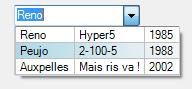
Et voilà, nous obtenons un combobox multicolonne.
Option Strict On
Option Explicit On
Imports System.ComponentModel
#Region "Multi Colonne COMBOBOX"
Public Class MultiColumnComboBoxDropDownListColumn
    Private sngWidth As Single
    Private blnVisible As Boolean
    Public Event MultiColumnComboBoxDropDownListColumnChanged()
    Public Property Width() As Single
        Get
            Return sngWidth
        End Get
        Set(ByVal value As Single)
            sngWidth = value
            RaiseEvent MultiColumnComboBoxDropDownListColumnChanged()
        End Set
    End Property
    Public Property Visible() As Boolean
        Get
            Return blnVisible
        End Get
        Set(ByVal value As Boolean)
            blnVisible = value
            RaiseEvent MultiColumnComboBoxDropDownListColumnChanged()
        End Set
    End Property
End Class


Public Class MultiColumnComboBox
    Inherits ComboBox

    ' On masque la propriété afin qu'elle ne soit pas modifiable
    ' Propriété cachée pour le designer, accessible seulement par code
    <Category("CustomProperty"), _
    Description("Colonnes de la dropdownlist"), _
    DesignerSerializationVisibility(DesignerSerializationVisibility.Hidden), _
    Browsable(False)> _
    Public Shadows ReadOnly Property DrawMode() As Windows.Forms.DrawMode
        Get
            Return MyBase.DrawMode
        End Get
    End Property
    Public Sub New()

        Me.DropDownStyle = ComboBoxStyle.DropDown
        Me.FlatStyle = Windows.Forms.FlatStyle.System
        ' Taille personnalisée pour les items de la liste
        ' et dessin des items gérés, forcé seulement à l'exécution
        If Not Me.DesignMode Then
            MyBase.DrawMode = Windows.Forms.DrawMode.OwnerDrawVariable
        End If
        fFont = Me.Font

    End Sub
    Private lstMyCol As New SortedList(Of Integer, MultiColumnComboBoxDropDownListColumn)

    ' Propriété cachée pour le designer, accessible seulement par code
    <Category("CustomProperty"), _
    Description("Colonnes de la dropdownlist"), _
    DesignerSerializationVisibility(DesignerSerializationVisibility.Hidden)> _
    Public Property DropDownListColumns() As SortedList(Of Integer, MultiColumnComboBoxDropDownListColumn)
        Get
            Return lstMyCol
        End Get
        Set(ByVal value As SortedList(Of Integer, MultiColumnComboBoxDropDownListColumn))
            lstMyCol = value
        End Set
    End Property

    Private sngItemHeight As Single
    Protected Overrides Sub OnMeasureItem(ByVal e As System.Windows.Forms.MeasureItemEventArgs)
        ' Ici on fixe une hauteur constante pour les items de la liste
        e.ItemHeight = CInt(sngItemHeight)
    End Sub

    Private cComboBoxSelectedRowGradientColor1 As Color = Color.LightBlue
    Private cComboBoxSelectedRowGradientColor2 As Color = Color.WhiteSmoke
    Private fFont As Font
    Private Const cstVerticalLineWidth As Integer = 1
    Private Const cstSpcBeforeStringText As Integer = 2
    Private Const cstSpcAfterStringText As Integer = 2
    Protected Overrides Sub OnDrawItem(ByVal e As System.Windows.Forms.DrawItemEventArgs)

        ' index < 0, il s'agit de la zone d'édition du combo
        If e.Index < 0 Then Exit Sub

        ' Modifications par Armand DOHM le 19/08/2010, gestion du DropDownStyle = ComboBoxStyle.DropDownList
        If (e.State And DrawItemState.ComboBoxEdit) = DrawItemState.ComboBoxEdit Then
            Dim fontColor As Drawing.Brush
            If (e.State And DrawItemState.Selected) = DrawItemState.Selected Then
                fontColor = System.Drawing.Brushes.White
            Else
                fontColor = System.Drawing.Brushes.Black
            End If
            e.DrawBackground()
            Dim strValue As String = CStr(Me.DropDownDataTable.Rows(e.Index).Item(Me.DisplayMember))
            e.Graphics.DrawString(strValue, fFont, fontColor, _
            New RectangleF(e.Bounds.X + 1, e.Bounds.Y + 1, _
            e.Bounds.Width, e.Bounds.Height))
        Else
            '
            ' Couleur de fond :
            ' si sélectionné -->  dégradé
            ' sinon --> on laisse faire
            '
            If (e.State And DrawItemState.Selected) = DrawItemState.Selected Then
                Dim backbrush As New  _
                    System.Drawing.Drawing2D.LinearGradientBrush(e.Bounds, _
                    cComboBoxSelectedRowGradientColor1, _
                    cComboBoxSelectedRowGradientColor2, _
                    System.Drawing.Drawing2D.LinearGradientMode.Horizontal)
                e.Graphics.FillRectangle(backbrush, e.Bounds)
            Else
                e.DrawBackground()
            End If

            ' Ligne horizontale de séparation des items de la liste
            e.Graphics.DrawLine(Pens.Silver, e.Bounds.X, e.Bounds.Y + e.Bounds.Height - 1, _
       e.Bounds.X + e.Bounds.Width, e.Bounds.Y + e.Bounds.Height - 1)

            '
            ' Dessin des différents contenus pour chaque colonne
            '
            Dim sngWidth As Single = 0

            For i As Integer = 0 To Me.DropDownDataTable.Columns.Count - 1

                If lstMyCol(i).Visible Then

                    ' Ligne de séparation des colonnes
                    e.Graphics.DrawLine(Pens.Silver, sngWidth, e.Bounds.Y, sngWidth, _
         e.Bounds.Y + e.Bounds.Height - 1)
                    sngWidth = sngWidth + cstVerticalLineWidth

                    ' Espacement
                    sngWidth = sngWidth + cstSpcBeforeStringText

                    ' Text de la colonne
                    Dim strValue As String = CStr(Me.DropDownDataTable.Rows(e.Index).Item(i))
                    e.Graphics.DrawString(strValue, fFont, System.Drawing.Brushes.Black, _
                        New RectangleF(sngWidth, e.Bounds.Y + 1, _
                        lstMyCol(i).Width, e.Bounds.Height))

                    sngWidth = sngWidth + lstMyCol(i).Width + cstSpcAfterStringText

                End If

            Next
        End If

        ' Dessin du Focus de l'item si besoin
        e.DrawFocusRectangle()

    End Sub

    Private DropDownDataTable As New DataTable
    Private Sub LoadDropDownDataTable()
        ' Le chargement en datatable est un prérequis pour pouvoir
        ' calculer la taille des différentes colonnes de la liste à l'affichage

        DropDownDataTable = New DataTable

        If Me.DataManager.List.Count = 0 Then Exit Sub

        Dim t1 As Type = Me.DataManager.List.Item(0).GetType

        Select Case True

            Case TypeOf (Me.DataManager.List) Is Array

                DropDownDataTable.Columns.Add("C")

                For Each o As Object In Me.DataManager.List
                    Dim dr As DataRow = DropDownDataTable.NewRow()
                    dr(0) = o.ToString
                    DropDownDataTable.Rows.Add(dr)
                Next

            Case TypeOf (Me.DataManager.List) Is DataView
                '
                ' La datasource est de type datatable ou dataset
                ' le .list du manager contient un dataview
                '
                Me.DropDownDataTable = CType(Me.DataManager.List, DataView).Table

            Case Else
                '
                ' La datasource est de type autre que datatable ou dataset
                ' une collection d'objets par exemple
                '
                '-----------------------------------------------------------------
                ' On considère implicitement que les objets du datasource sont
                ' tous du même type et que les propriétés qu'ils exposent
                ' sont toutes accessibles
                '
                Dim t As Type = Me.DataManager.List.Item(0).GetType()
                Dim pDataSourceObjectProperties As System.Reflection.PropertyInfo() = t.GetProperties
                For Each p As System.Reflection.PropertyInfo In pDataSourceObjectProperties
                    DropDownDataTable.Columns.Add(p.Name)
                Next
                '
                ' On charge les lignes de la datatable à partir des items de
                ' la liste en datasource
                For Each o As Object In Me.DataManager.List
                    Dim dr As DataRow = DropDownDataTable.NewRow()
                    For Each p As System.Reflection.PropertyInfo In pDataSourceObjectProperties
                        dr(p.Name) = p.GetValue(o, Nothing)
                    Next
                    DropDownDataTable.Rows.Add(dr)
                Next

        End Select

    End Sub

    Private Sub SetDropDownSize()
        '
        Dim sngDropDownListWidth As Single
        '
        ' On déduit la largeur de la dropdown liste
        ' en cumulant les largeurs des colonnes visibles
        '
        sngDropDownListWidth = 0
        For i As Integer = 0 To lstMyCol.Count - 1
            ' xxx pour la ligne et un espacement, xxx en fin pour l'espacement
            If lstMyCol(i).Visible Then
                sngDropDownListWidth = cstSpcBeforeStringText + sngDropDownListWidth _
        + lstMyCol(i).Width + cstSpcAfterStringText
            End If
        Next

        ' On augmente la largeur pour éclaircir un peu à droite
        sngDropDownListWidth = sngDropDownListWidth + 5

        ' On augmente la largeur pour la barre de défilement
        ' si la liste contient plus d'items que le nombre max affichable
        If Me.DropDownDataTable.Rows.Count > Me.MaxDropDownItems Then
            sngDropDownListWidth = sngDropDownListWidth + SystemInformation.VerticalScrollBarWidth
        End If

        Dim intWidth As Integer
        intWidth = CInt(sngDropDownListWidth)

        ' Cas d'un liste vide
        If intWidth <= 0 Then
            intWidth = Me.Width
        End If

        MyBase.DropDownWidth = intWidth
        If sngItemHeight = 0 Then
            MyBase.DropDownHeight = Me.Height
        Else
            MyBase.DropDownHeight = CInt(sngItemHeight) * Me.MaxDropDownItems
        End If

    End Sub

    Private Sub InitializeDropDownColumn()

        lstMyCol.Clear()

        ' Mesure de la largeur max de chaque colonne
        ' ------------------------------------------

        ' Création du graphic utilisé par le control
        Dim cGraphics As Graphics = Me.CreateGraphics()

        ' Pour chaque ligne de la table source, mesure de la longueur de la donnée
        Dim rRow As DataRow
        Dim sfSize As SizeF

        sngItemHeight = 0

        '
        ' On va définir pour chaque colonne de la datatable
        ' quelle est la taille maximum du texte qu'elle contient
        '
        For Each rRow In Me.DropDownDataTable.Rows
            For i As Integer = 0 To DropDownDataTable.Columns.Count - 1

                ' On mesure la taille du texte
                sfSize = cGraphics.MeasureString(CStr(rRow.Item(i)), fFont)

                ' Calcul de hauteur de ligne maximale
                If sngItemHeight < sfSize.Height Then
                    sngItemHeight = sfSize.Height + 2
                End If

                ' Calcul de la largeur de la colonne
                If lstMyCol.ContainsKey(i) Then
                    If lstMyCol(i).Width < sfSize.Width Then
                        lstMyCol(i).Width = sfSize.Width + 1
                    End If
                Else
                    Dim cMyCol As New MultiColumnComboBoxDropDownListColumn
                    cMyCol.Width = sfSize.Width + 1
                    cMyCol.Visible = True
                    lstMyCol.Add(i, cMyCol)
                    ' Détection des modifications de colonnes
                    AddHandler cMyCol.MultiColumnComboBoxDropDownListColumnChanged, AddressOf Me.SetDropDownSize
                End If

            Next
        Next

        cGraphics.Dispose()

        Me.SetDropDownSize()

    End Sub

    Protected Overrides Sub OnDataSourceChanged( _
    ByVal e As EventArgs _
    )
        MyBase.OnDataSourceChanged(e)

        Me.LoadDropDownDataTable()

        Me.InitializeDropDownColumn()

    End Sub

End Class

#End Region
IV-B. Utilisation▲
Plutôt qu'un long discours, un exemple d'utilisation ici : UseMultiColumnCombobox.zipUseMultiColumnCombobox.zip.
IV-C. Et maintenant ?▲
Nous avons un control combobox multicolonne, c'est bien, mais :
- où sont donc les noms de colonnes ?
- comment trier dynamiquement la liste déroulante ?
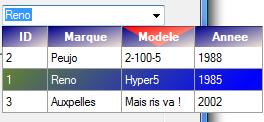
C'est le thème de mon prochain article où nous verrons comment obtenir ceci :